Sharpen Image Online Free
Sharpen image online in the tab. Raise edge contrast on a soft still. The preview is the file you download. Nothing is uploaded.
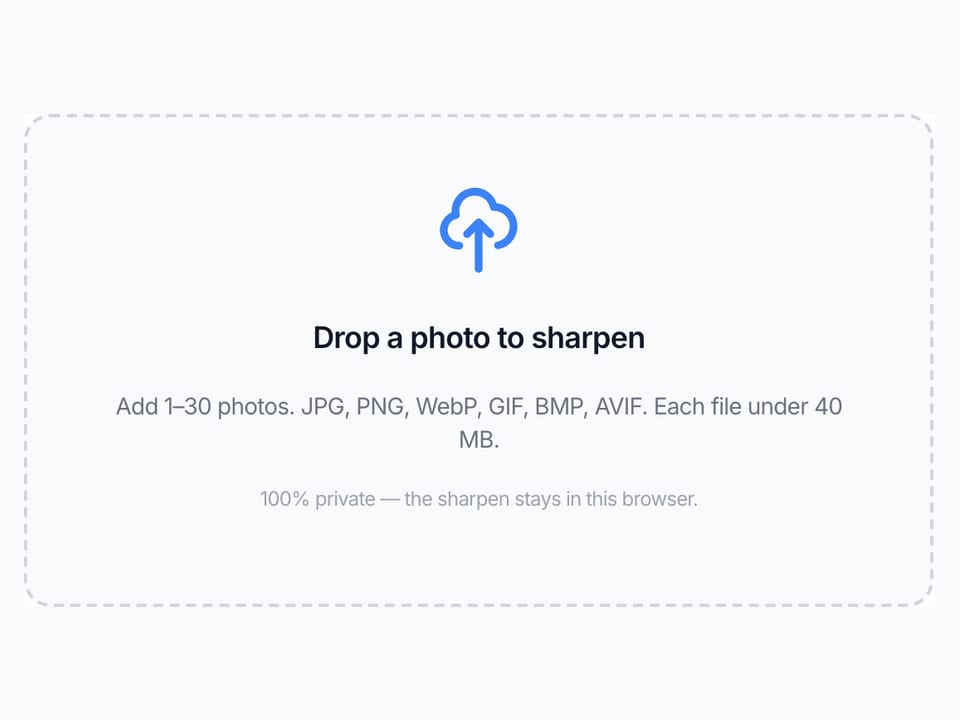
Drop a photo to sharpen
Add 1–30 photos. JPG, PNG, WebP, GIF, BMP, AVIF.
100% private — the sharpen stays in this browser.
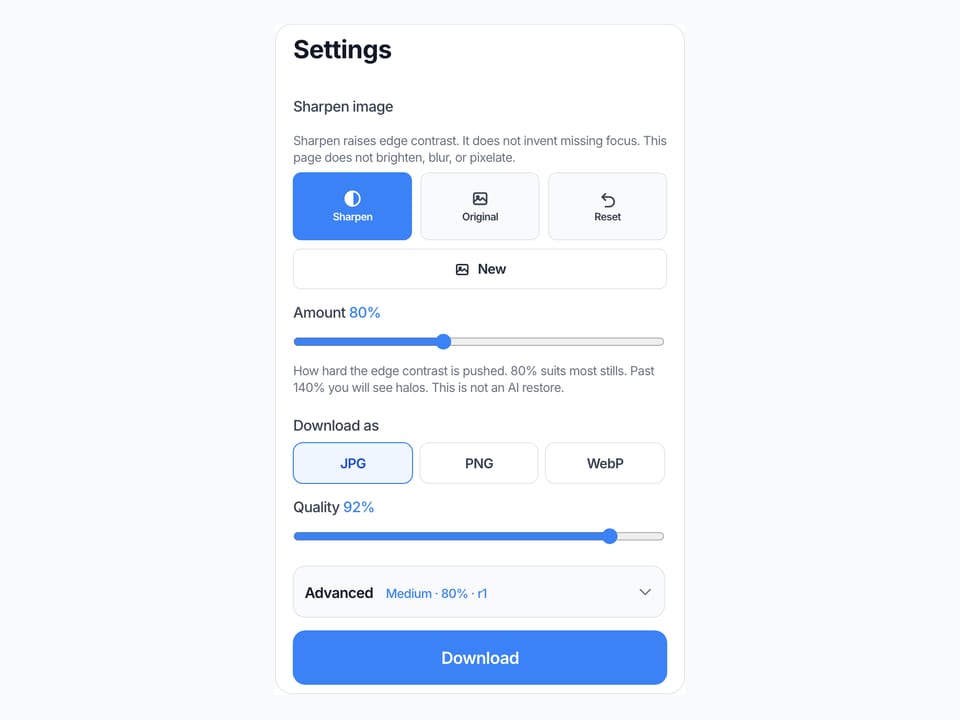
Settings
Sharpen image
Sharpen raises edge contrast. It does not invent missing focus. This page does not brighten, blur, or pixelate.
How hard the edge contrast is pushed. 80% suits most stills. Past 140% you will see halos. This is not an AI restore.
Download as
Advanced
Leave this closed for Medium. Open it to jump to Soft or Heavy, or to change Radius and Threshold. Amount still lives on the slider above.
Sharpen preset
How wide the edge halo is, in pixels. Keep 1 for photos. Use 2 on a soft resize.
Skip pixels that barely differ from their neighbors, so skin and sky stay clean.
100% local
The image sharpener runs in this browser. The photo never leaves the tab.
No upload
Nothing is sent to a server to finish the sharpened file.
Free, no account
No signup, no watermark. Download JPG, PNG, or WebP.
Also on this site: Split Image · Flip Image · Rotate Image · Invert Image Colors · Blur Image · Pixelate Image · Merge Images · Image Compressor · AI Image Upscaler
What does sharpen image do?
This page is a browser image sharpener — an unsharp mask for a file you already have. You add a photo and the tool exaggerates the difference between each pixel and a slightly blurred copy of it. People type sharpen image, image sharpener, sharpen image online free, sharpen photo, image clearer, or unsharp mask online. The job is the same: a still you can download as JPG, PNG, or WebP.
Sharpen is not unblur. A badly out-of-focus face has no edge left to raise. This page will not invent eyelashes or run an AI model. It is also not brightness, contrast, or saturate — those live on Adjust Image. It is not Blur Image run backwards. Photoshop, Lightroom, GIMP, Canva, Photopea, Affinity, and Illustrator searches want a menu in another app.
The file never goes to our server. JPG, PNG, WebP, GIF, BMP, and AVIF are welcome. HEIC, TIFF, and PDF are declined on purpose. One photo is enough. A small batch uses the same Amount, Radius, and Threshold on every file. Video, text prompts, and “AI image sharpener 16k” stay off this URL.
What you can do here
One photo is enough for a sharpen image job, a free image sharpener download, or a sharpen photo pass after a resize. Soft, Medium, and Heavy are three different unsharp masks — not the same slider with new names.
Unsharp mask in one add
Sharpen is already on when the photo opens, at Medium. The math is original plus (original minus a box blur) times Amount, when the difference clears Threshold. You do not press Convert and wait for an upload.
Amount, Radius, Threshold
Amount is on the main card. Radius and Threshold sit under Advanced, the same three knobs peers who write a real sharpener expose. Soft, Medium, and Heavy jump to different triples. Heavy is stronger than Medium.
Live preview
What you see in the box is what you save as JPG, PNG, or WebP. Identity under the preview shows the filename, pixel size, and amount.
Stays on this device
JPG, PNG, WebP, GIF, BMP, or AVIF. Each file under 40 MB, up to 30 photos. HEIC, TIFF, and PDF are declined. A side longer than 8000 px is scaled down before the pass so the tab stays usable.
How to sharpen an image in 3 steps
Works on a phone or a computer. No account. Same path for sharpen image online free and image sharpener.
Add a photo
Drop a JPG, PNG, or WebP on the dashed box, or pick a file. One photo is enough. You can add more if you want the same sharpen on a batch.
Check Amount, then peek at Original
Medium is already on at 80%. Drag Amount only if the edge is still soft or already crunchy. Original shows the file without changing the download until you Sharpen again.
Download the sharpened file
View it here, copy it, or download JPG, PNG, or WebP. Two or more photos download as a ZIP with the same Amount, Radius, and Threshold on each file.

Why sharpen here
This page only raises edge contrast on a still. Sharpen image, image sharpener, sharpen photo, and image clearer are the same job in the search box.
No upload
The file never goes to our server to finish the sharpen image job. Closing the tab clears it from this page. That is the same privacy rule as Blur Image and the rest of this site.
The preview is the download
You do not press Convert, then wait, then guess which file came back. What you see in the preview is what you save. Identity shows the filename, pixels, and amount.
Honest about other apps
We do not walk you through Photoshop, Lightroom, GIMP, Canva, Photopea, or Affinity. If you need their Smart Sharpen or a camera profile, use those apps. If you need a sharper JPG now, use this box.
Not AI and not brightness
An AI unblur that guesses missing pixels is a different product. A dark photo is Adjust Image. A soft wash is Blur Image. This page will not pretend it restores a missed focus pull.
Limits and tips
- Sharpening cannot create detail that was never captured. A two-pixel face stays a two-pixel face.
- If the still is already noisy, raise Threshold or drop Amount. Sharpening JPEG blocks makes them louder.
- Do the resize first, then sharpen the size you will publish. Sharpening then shrinking throws the halo away.
- Soft is for portraits and sky. Heavy is for screenshots and logos. Medium is the default photo pass.
- A brightness or contrast problem is Adjust Image. A gray convert is Grayscale Image. A soft wash is Blur Image.
- Each file must stay under 40 MB. A side longer than 8000 px is scaled down before the pass.
- HEIC from iPhone, TIFF, and PDF are rejected. Save a JPG or PNG first.
- You own the photo you add. This page is not legal advice and does not grant a copyright license.
Jobs that finish on this page
These are sharpen image jobs. Software-menu and AI-restore searches stay off this list on purpose.
A photo that went soft after a resize
A product still that lost bite when it was scaled for a listing. Leave Medium on, View at full size, then download PNG if you want a clean encode.
Input: One JPG or PNG photo
Setting: Sharpen on, Medium, Amount 80%
Output: One sharpened JPG or PNG
Caveat: This is not an upscaler. If the source is tiny, enlarge it somewhere else first, then come back.
Same pass on a small batch
A folder of event photos that all need the same edge lift. Add up to 30, keep Amount, download the ZIP.
Input: Several JPG files
Setting: Same Amount, Radius, and Threshold on all
Output: A ZIP of sharpened files
Caveat: It is not a desktop folder watcher or a 100-file factory.
A screenshot that looks mushy
UI text or a diagram that should read as ink, not oatmeal. Open Advanced, pick Heavy, then View at 100%.
Input: One PNG screenshot
Setting: Heavy — Amount 150%, Radius 2
Output: One crisper PNG
Caveat: Halos show up fast on Heavy. If letters grow a white fringe, drop Amount.
Sharpen here, or use a neighbor tool?
Use this page
Sharpen a soft still
Use this URL when you need to sharpen image, run an image sharpener, make a photo clearer after a resize, or download an unsharp mask result. The preview is the file. Brightness, blur, and grayscale live on other URLs.
Use a related tool
Soften, invert, mosaic, or cut tiles
Need a soft wash instead of a crisp edge? Use Blur Image . Need a color negative? Use Invert Image Colors . Need mosaic blocks? Use Pixelate Image . Need a left-right mirror? Use Flip Image . Need Instagram tiles? Use Split Image . None of those pages sharpen image.
Sharpen image FAQ
What does sharpen image do? +
Sharpen image raises contrast along edges. This URL is an image sharpener: add a picture, run an unsharp mask, and download the still as JPG, PNG, or WebP. It does not invent focus that was never in the file, and it is not a brightness slider.
How do I sharpen an image online for free? +
Add a JPG, PNG, or WebP. Sharpen is already on at Medium. Download that file. You do not create an account. There is no paid unlock for the mask itself, and the file stays in this tab.
Is this an image sharpener I can use without login? +
Yes. There is no account wall and no watermark. Add a photo, sharpen it, download it. We do not upload the photo to finish the sharpen image online free job.
Can I sharpen a blurry image or a missed focus? +
Only if some edge is still there. A slight softness after a resize responds. A badly out-of-focus or motion-blurred shot does not. This page will not run an AI unblur or guess missing pixels. If people search “blur to sharpen image” expecting a miracle, that is not this box.
How do I sharpen a JPEG image? +
Add the JPG. Leave Sharpen on. Download JPG again, or pick PNG if you want to stop stacking JPEG artifacts. The quality slider only applies to JPG and WebP. This is still an unsharp mask, not a new camera take.
Can I sharpen image on iPhone or Android? +
Yes. Use Safari or Chrome. Add a JPG or PNG, leave Sharpen on, then download. You do not install a free sharpen photo app. iPhone Photos does not write this file for you.
How do I sharpen an image in Photoshop, GIMP, Canva, Photopea, or Affinity? +
This page does not open those apps. Those searches want Unsharp Mask or Smart Sharpen in that software. If you already have a JPG or PNG export, drop that file here to sharpen image online and download a new still. We will not pretend this URL is their tutorial.
Is this an AI image sharpener? +
No. Searches like AI image sharpener, AI sharpen image free, or Fotor AI image sharpener want a model that guesses new pixels. This page only runs a local unsharp mask. We will not slap “AI” on a convolution.
What are Amount, Radius, and Threshold? +
Amount is how hard the edge is pushed. Radius is how wide the halo is. Threshold skips low-contrast pixels so skin and sky stay quiet. Soft, Medium, and Heavy are three different triples. You can still drag the sliders after a preset.
What is an unsharp mask online? +
Unsharp mask is the usual digital sharpen: blur a copy, subtract, add the difference back. The name is leftover from darkroom film. This page runs that math in the tab. It is not a separate product from sharpen image.
Does sharpening reduce quality or add noise? +
It can. Grain and JPEG blocks get louder when Amount is high and Threshold is low. PNG keeps the structure cleaner. A side longer than 8000 px is scaled down before the pass. The convert itself is supposed to change edges — that is the point.
What formats can I sharpen? +
JPG, PNG, WebP, GIF, BMP, and AVIF. Each file must stay under 40 MB. HEIC, TIFF, PDF, and SVG are rejected. Convert those to JPG or PNG first, then add the converted file to this image sharpener.
Can I sharpen more than one image at once? +
Yes. Add up to 30 photos. The same Amount, Radius, and Threshold apply to each file. Download one, or download all as a ZIP. It is not a desktop folder watcher or a 100-file factory.
Can I download a PNG or keep transparency? +
Yes. Add the PNG, leave Sharpen on, and pick PNG under Download as. Transparent pixels stay transparent. JPG fills those pixels with white because JPEG has no alpha channel. There is no PSD export.
Is sharpen the same as brighten, contrast, or grayscale? +
No. Brighten, darken, contrast, and saturate live on Adjust Image. Grayscale Image drops hue. Blur Image softens. This URL only raises edge contrast. Use the other pages if that is the job.
Can I sharpen a video or use a text prompt? +
No. Video and prompt searches are a different job. This image sharpener only accepts stills. There is no text prompt and no timeline.
Is this legal, and who owns the photo? +
You keep the rights to the file you add. We do not store it and we do not give you a copyright license for someone else’s picture. This is not legal advice. If the photo is not yours to edit, do not use this sharpener on it.
Ready to sharpen image online
Add a photo above. Sharpen is already on. Download when the edge looks right.
Sharpen image