Add Stroke to Image Online Free
Drop a cutout or a photo. This add stroke to image tool traces the PNG silhouette or a solid rectangular border, then you download PNG or WebP.
Drop a photo or a PNG cutout
or browse, or paste from the clipboard
Choose a photo
Silhouette or border
Trace the PNG cutout, or frame the whole bitmap with a solid rectangle.
No upload
The photo stays in this browser while you set color, width, and placement.
PNG and WebP
Both keep a clear outside. JPG is not offered, because it cannot.
Also on this site: Remove Background · Circle Crop · Split Image
What this add stroke to image tool does
An add stroke to image tool draws a colored line around what is already in the file. On a transparent PNG that line hugs the real silhouette — a logo, a sticker, a cutout — not the rectangle of the canvas. Holes in the shape get the same outline, because they are still an edge in the alpha channel.
Width is 0.5% to 10% of the shorter side. Color is any hex. Placement decides where that paint sits: outside grows the canvas so the halo is not clipped, center sits on the edge, and inside eats into the cutout and keeps the original pixel size. A second mode on this same URL paints a solid rectangular border around the whole bitmap, which is the usual add-border job for a photo that has no transparency.
The picture stays in this tab. PNG and WebP keep the outside clear. This page does not offer JPG, because that format would fill the halo with white and hide the transparency you just made.
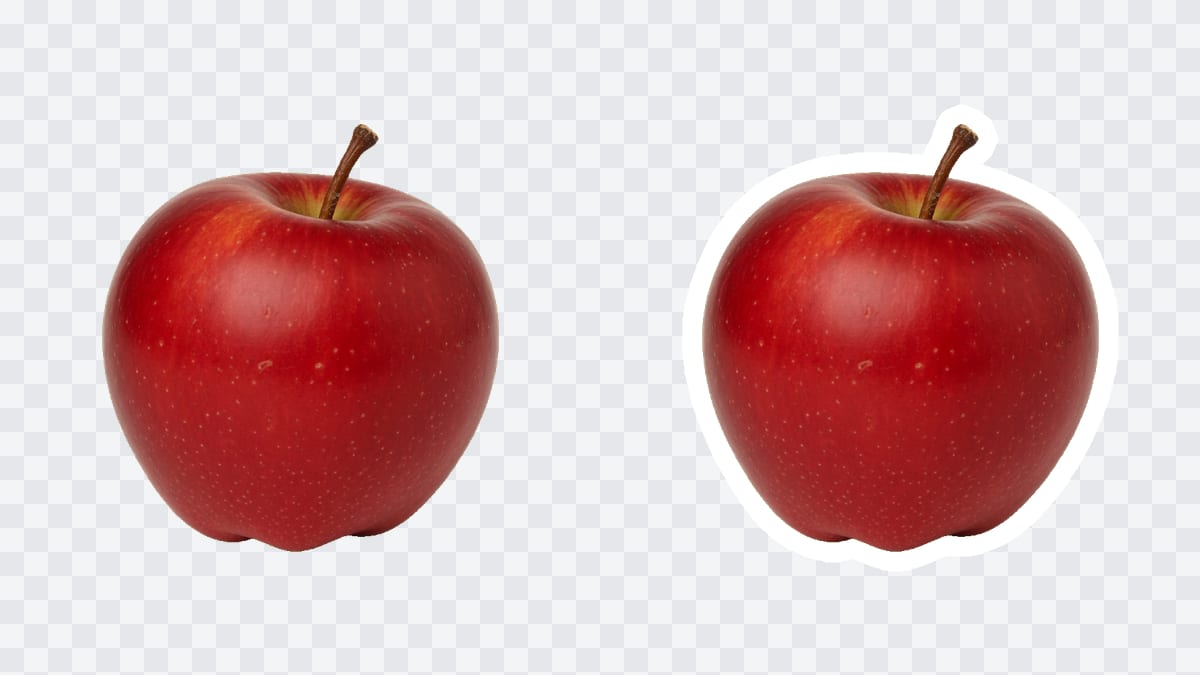
Stroke and border controls
One photo, one outline, one file you can place on a thumbnail or a sticker sheet.
Silhouette stroke
Reads the alpha channel and traces the cutout. This is the add stroke to png job: logos, stickers, and subject cutouts.
Outside, center, inside
Outside is the sticker halo. Center straddles the edge. Inside keeps the canvas size and paints over the rim of the shape.
Rectangular border
A solid frame around the whole picture. Use it when the file has no transparency, or when you want a print-style matte instead of a silhouette.
Transparent PNG and WebP
The checkerboard in the preview is empty pixels. Those pixels stay empty in the download so the outline sits on whatever you place next.
How to add a stroke to an image
Three moves. The add stroke to image preview updates as soon as the photo opens.
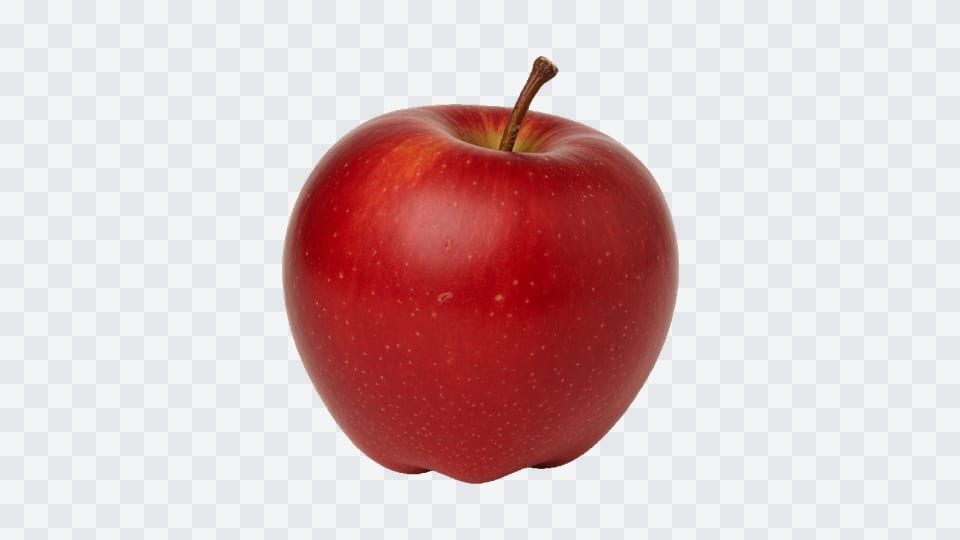
Add the photo
Drop a JPG, PNG, or WebP, browse for it, or paste it. A transparent PNG is the right input for a silhouette. The picture stays in this tab.
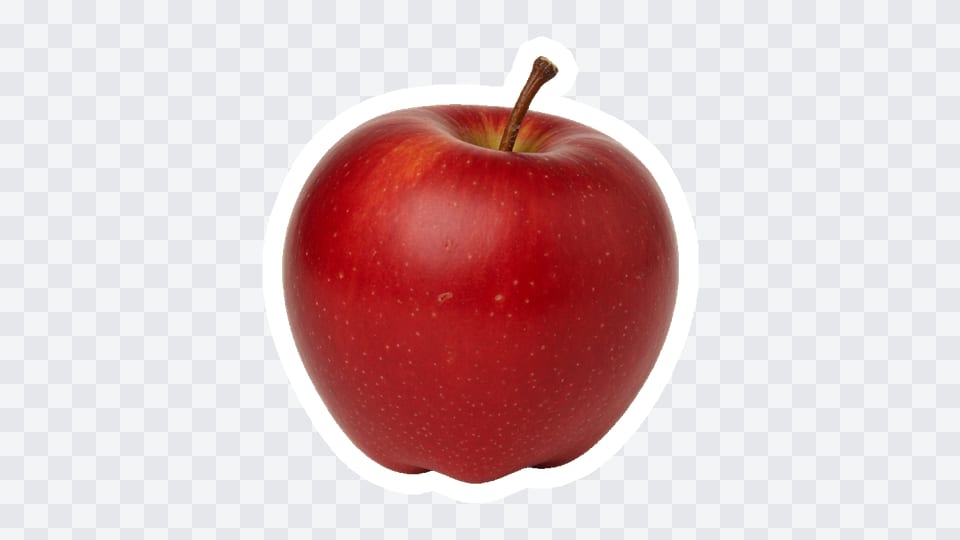
Set the outline
Pick silhouette or border. Move width, pick a color, and — in silhouette mode — choose outside, center, or inside. Watch the checkerboard preview.
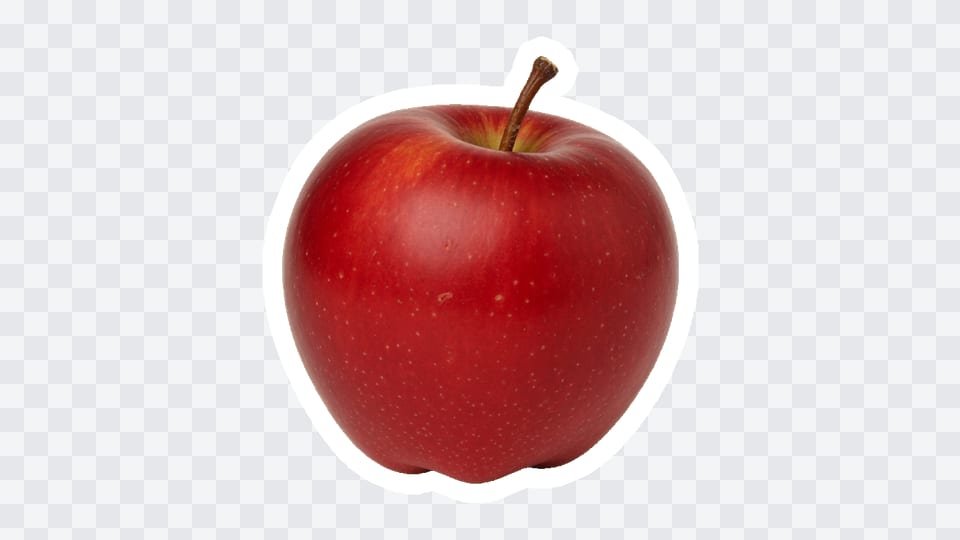
Download the file
Save PNG or WebP. Outside and center add the stroke width around the edges. Inside keeps the source width and height, up to 4096 pixels on the long side.
Why outline in the browser
A halo only helps if you can see the clear pixels before you save.
You see the transparency
The preview is the outlined file, not a white box. You can tell whether the stroke is thick enough before you download.
Two jobs, one URL
Silhouette stroke and a rectangular border share this add stroke to image page, so a photo without alpha still has a useful frame.
No account
There is no signup, no watermark, and no credit charge for another photo.
Private on this device
The outline runs in the browser. Close the tab and the photo is gone with it.
Tips and limits
- Silhouette mode needs real transparency. A PNG that only looks cut out because the studio wall is white has no edge to trace. Cut the subject first, or use Border.
- Width is absolute pixels. Eight pixels that look bold on a 500-pixel sticker almost disappear on a 4000-pixel export, so set it against the size you will actually ship.
- A hole in a logo is an edge. Outside placement will ring that hole. If you wanted the hole left empty with no inner halo, that is a different edit.
- This page outlines still images. It does not key a video, draw a neon glow, stack a double stroke, or open Photoshop or Canva.
Where an outlined file gets used
Anywhere a cutout has to stay readable on a busy background.
Stickers and die-cuts
A white outside stroke is the usual sticker border. Download the PNG and send that file to print or to a chat pack.
Thumbnails
A bright outline around a person or a product keeps the subject from melting into a busy thumbnail background.
Logos and icons
A thin dark stroke on a pale slide, or a pale stroke on a dark poster, is the same add stroke to image control with a different swatch.
What this page will not do
This add stroke to image page is not a lesson inside Photoshop, Illustrator, Canva, Procreate, or CapCut. Those apps have their own stroke panels. Here you open the still, set the outline, and download a file.
It is not an AI subject cutout and it is not a glow or gradient factory. Soft neon, stacked double strokes, and rainbow outlines stay off this URL. A busy photo with no transparent edge belongs on Remove Background first.
It does not export SVG, PSD, or video. It does not animate a GIF. JPG is omitted on purpose, because a JPEG cannot keep the clear pixels around the stroke.
This page keeps a raster PNG. If you need clean vector paths for Cricut, vinyl, or print, Vectorize Image turns that outlined file into SVG, EPS, or DXF.
Add stroke to image questions
How do I add a stroke to an image?
Drop a photo or a transparent PNG. This add stroke to image tool traces the silhouette or a solid rectangular border. Set width and color, choose outside, center, or inside, then download PNG or WebP from this tab.
Is this add stroke to image tool free?
Yes. There is no account, no watermark, and no charge to outline a file and save it. You can open another picture after the first one without a daily cap on this page.
Can I use this online in a browser?
Yes. The add stroke to image page runs in this tab. You do not install a program, and the photo is not sent to a server before you download the outlined file.
Do I need an app or browser extension?
No. A current browser is enough. Drop the file, paste it, or browse for it. Nothing extra has to be installed to move the sliders or save the PNG.
Does it work on mobile?
Yes. The photo and the stroke controls sit above the preview. You can pick a color, move width, switch silhouette or border, and save the same PNG as on a computer.
What file do I get — JPG, PNG, or PSD?
PNG or WebP. Both keep the clear area outside the stroke. This add stroke to image page does not write a PSD, and it does not offer JPG because that format cannot store transparency.
Can I add a stroke to a PNG with a transparent background?
Yes. Silhouette mode reads the alpha channel and draws around the real shape, including holes in a logo. That is the main add stroke to png job this page is built for.
Can I add a white stroke to image cutouts?
Yes. White is the default color because stickers and thumbnails often need a pale halo. Pick any other hex with the color chip if the cutout has to sit on a light background instead.
Can I add a black stroke to image files?
Yes. Choose the black swatch or type a dark hex. A black outline is the usual choice on a pale slide or a printed sheet where a white halo would disappear.
How is add border to image online different from a silhouette stroke?
Border mode paints a solid rectangle around the whole canvas. Silhouette mode follows the cutout. Both live on this add stroke to image URL so you do not need a second page for a simple frame.
Does the outline follow holes in a logo?
Yes in silhouette mode. Transparent holes count as outside the shape, so the stroke rings those holes as well as the outer edge. Border mode ignores holes and frames the rectangle.
Is my photo uploaded?
No. The picture is opened and outlined in your browser. Close the tab and it is gone. This site does not keep a copy of the add stroke to image file.
Can this add a stroke in Photoshop, Canva, or Illustrator?
No. This page does not open those apps. Outline the still here, download the PNG, and place that file in the other program yourself if you still need a layout around it.
What if my photo has no transparent background?
Silhouette mode then traces the rectangular edge of the bitmap, which looks like a frame. Switch to Border for an even rectangle, or cut the subject out first with Remove Background.
Can I put the stroke outside, centered, or inside the edge?
Yes in silhouette mode. Outside grows the canvas so the halo is not clipped. Center sits on the edge. Inside eats into the cutout and keeps the original pixel size.
Will the download stay the same size as my photo?
Inside placement keeps the source width and height. Outside and center add the stroke width around the edges. The long side is capped at 4096 pixels so huge scans still save.
Outline the cutout
Add a photo, set the stroke, and download a transparent PNG. It stays in this browser.
Open the tool