Green Screen Remover Online Free
Drop a photo shot on a flat green or blue screen. This green screen remover keys that color out and downloads a transparent PNG.
Drop a green screen photo
or browse, or paste from the clipboard
Choose a photo
The border color is keyed out. Click the photo after Pick color to sample another screen.
This is the color that gets removed. Green is taken from the edge of the photo. Press Pick color, then click the screen in the picture to choose blue or another flat color.
How close a pixel must be to the key color before it disappears. Raise it if patches of the screen remain. Lower it if the person starts to vanish.
Green light that bounced onto hair and clothes. Raise it to take that green tint off the edges. It does not remove more of the background.
Keyed preview
Color key
The screen color goes transparent. A matching green shirt goes with it.
No upload
The photo stays in this browser while you tune the key and download it.
PNG and WebP
Both keep a clear outside. JPG is not offered, because it cannot.
Also on this site: Remove Background · Circle Crop · Split Image
What this green screen remover does
A green screen remover keys out a flat backdrop color. It is a chroma key for one still photo, not a guess about which object is the subject. Pixels close to the screen color become transparent. A shadow on the same green still counts as the screen, because the key looks at color, not brightness.
The page reads the border of the picture and sets the key color from that edge. Most greenscreen shots are ready to download. If a patch of screen remains, raise tolerance. If a sleeve or a cheek disappears, lower it. Spill pulls the green cast off hair and shoulders where the screen bounced light onto the subject.
Click the photo to key a different color. A blue screen, a cyan sweep, or another solid studio wall uses the same green screen remover. PNG and WebP keep the outside clear. This page does not offer JPG, because that format would paint the keyed area black or white and hide the transparency.

Chroma key controls
One photo, one key color, one transparent file.
Key color
Green is the start. Use the picker or click the photo to sample a blue screen or any other flat color.
Tolerance
Raise it when specks of the screen survive. Lower it when the green screen remover starts eating the subject.
Spill
Turns down the green tint on the edge of hair and light clothes. It does not repaint the whole subject.
Transparent PNG
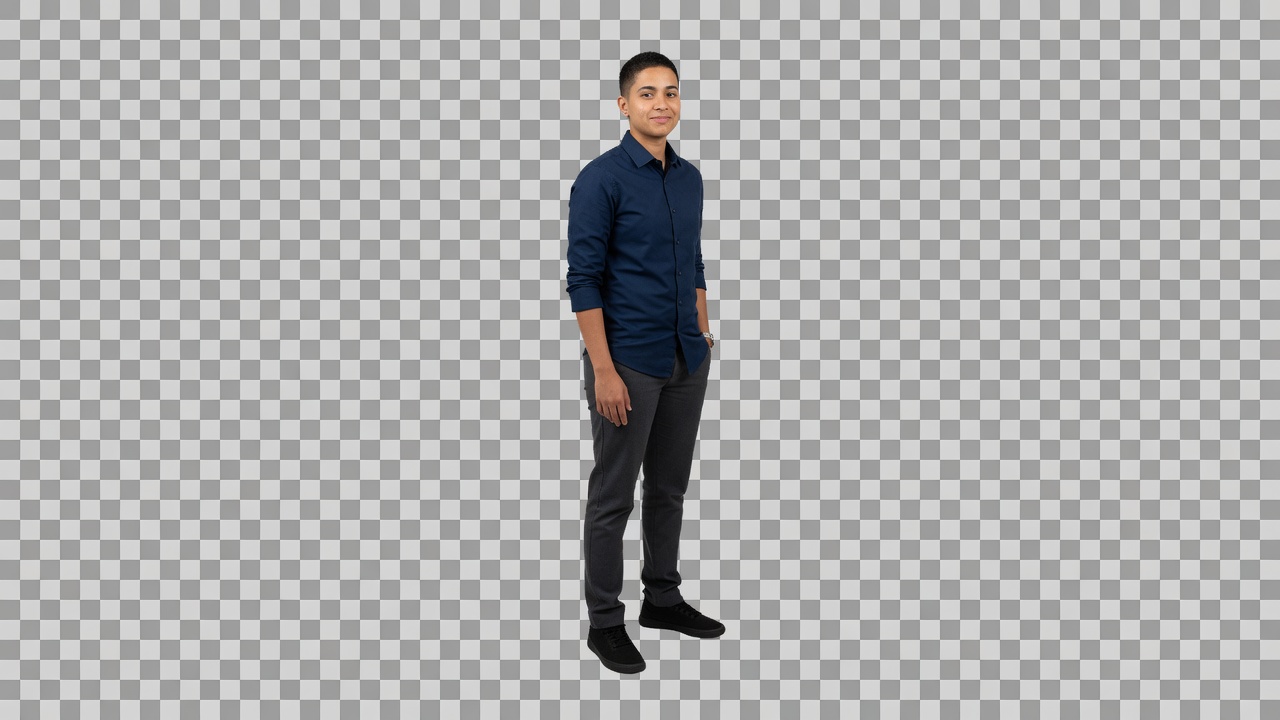
The checkerboard in the preview is the clear area. PNG and WebP keep that clear area in the file.
How to remove a green screen from an image
Three moves. The green screen remover keys the border color as soon as the photo opens.
Add the photo
Drop a JPG, PNG, or WebP, browse for it, or paste it. The picture stays in this tab.

Check the key
Look at the checkerboard preview. Move tolerance or spill, or click the photo to sample a different screen color.

Download the cutout
Save PNG or WebP. The file is the same width and height as the photo you opened, with the screen transparent.
Why key the screen yourself
A greenscreen only helps if the file you keep still has a clear outside.
You see the transparency
The preview is the cutout, not a white box. You can tell whether the green screen remover left a halo before you download.
Any solid screen
Green is the common case. Blue and other flat colors are the same control, one click away.
No account
There is no signup, no watermark, and no credit charge for another photo.
Private on this device
The key runs in the browser. Close the tab and the photo is gone with it.
Tips and limits
- Light the screen evenly. A bright corner and a dark corner are still the same color, but a wrinkled screen with a different hue needs more tolerance and may nick the subject.
- A green shirt is the same color as a green screen. This green screen remover will take the shirt with the wall. It does not know which green you meant to keep.
- This page keys still photos. It does not key a video, a live camera, or a clip for a video editor.
- A busy room with no flat screen is not this job. Use Remove Background when there is no single color to key.
Where a keyed still gets used
Anywhere you need the person or the product without the screen behind them.
Thumbnails and stills
Key one frame from a greenscreen shoot and drop the PNG onto another layout.
Product on a sweep
A product on a flat green or blue sweep becomes a cutout you can place on a catalog page.
Portraits
A headshot against a screen keeps the face and loses the wall, as long as the clothes are not the same green.
What this page will not do
This green screen remover is not a lesson inside Photoshop, CapCut, Premiere, DaVinci, or Canva. Those apps have their own keyers. Here you open the still, set the color, and download a file.
It is not an AI subject cutout. It does not find a person in a street photo. If the background is not one flat color, the key has nothing reliable to remove. That job is Remove Background.
It does not export video, a WebM, or a PNG sequence. It does not paint a mask with a brush. A green object that should stay has to be a different color from the screen, or it will go transparent with the screen.
Green screen remover questions
How do I remove a green screen background from an image?
Add the photo. This green screen remover samples the border and keys that color out. Raise tolerance if patches of screen remain, then download a PNG or WebP.
Is this green screen remover free?
Yes. There is no account, no watermark, and no charge to key a photo and save the cutout. You can open another picture after the first one.
Can I use this online in a browser?
Yes. The green screen remover runs in this tab. You do not install a program, and the photo is not sent to a server before you download.
Do I need an app or extension?
No. A current browser is enough. Drop the file, paste it, or browse for it. Nothing extra has to be installed to move the sliders or save the PNG.
Can I remove a blue screen instead?
Yes. Click Pick color, then click the blue backdrop, or set the color chip yourself. The same tolerance and spill controls apply to that key color.
Does the download keep a transparent background?
PNG and WebP do. The checkerboard in the preview is empty pixels, and those pixels stay empty in the file. This page does not offer JPG, which cannot store that clear area.
What if part of the subject disappears?
Lower tolerance so fewer colors count as the screen. If the missing piece is the same green as the wall, the green screen remover cannot keep it and remove the wall at the same time.
Why is there still a green edge?
That is spill, green light bounced onto the outline. Raise the spill slider to pull that cast down. A very wide fringe may also need a slightly higher tolerance.
Does this work on video?
No. This green screen remover keys one still image. A clip, a livestream, or a camera feed needs a video editor. A single exported frame can be keyed here.
Is my photo uploaded?
No. The picture is opened and keyed in your browser. Close the tab and it is gone. This site does not keep a copy.
Can this remove a white or black background?
Only when that background is a flat color you can sample and the subject is clearly different. A white shirt on a white wall has no color distance for a chroma key to use.
Is this the same as an AI background remover?
No. An AI cutout tries to find the subject in any photo. This green screen remover only deletes pixels near the screen color you set. A cluttered room is the wrong input.
What size is the file?
The download matches the photo’s width and height, up to 4096 pixels on the long side. The key does not invent extra detail and does not crop the frame.
Does it work on a phone?
Yes. The photo and the sliders sit above the preview. You can sample a color, move tolerance, and save the same transparent PNG as on a computer.
Can I key a green screen in Photoshop or CapCut here?
No. This page does not open those apps. Key the still here, download the PNG, and place that file in the other program yourself.
Key the screen out
Add a photo, check the cutout, and download a transparent PNG. It stays in this browser.
Open the remover