Flip Image Online Free
Mirror a photo left to right, flip it top to bottom, or turn it 90°. The preview is the file you download. Nothing is uploaded.
Drop a photo to flip
Add 1–30 photos. JPG, PNG, WebP, GIF, BMP, AVIF.
100% private — flipping stays in this browser.
Settings
Flip & rotate
Horizontal mirrors left and right. Vertical is top to bottom.
100% local
The flip runs in this browser. The photo never leaves the tab.
No upload
Nothing is sent to a server to finish the mirror or the 90° turn.
Free, no account
No signup, no watermark. Download JPG, PNG, or WebP.
Also on this site: Split Image · Merge Images · Rotate Image · Mirror Image · Image Compressor · AI Image Upscaler
What is this flip image tool?
This page is a browser flip image tool. You add a photo, click Horizontal or Vertical, and download the mirrored file. That is an image flip or a flip photo job — same pixels, mirrored. Horizontal swap is left and right, a mirror image. Vertical swap is top and bottom. Rotate left, rotate right, and 180 sit in Settings if the photo is sideways.
It is not a Canva, Photoshop, Word, or CSS lesson. Those searches want menu clicks in another app. Here the flip happens in the tab you already have open. Invert colors and custom-angle rotate stay off this URL.
The file never goes to our server. JPG, PNG, WebP, GIF, BMP, and AVIF are welcome. HEIC, TIFF, and PDF are declined on purpose. One photo is enough. A small batch uses the same setting on every file.
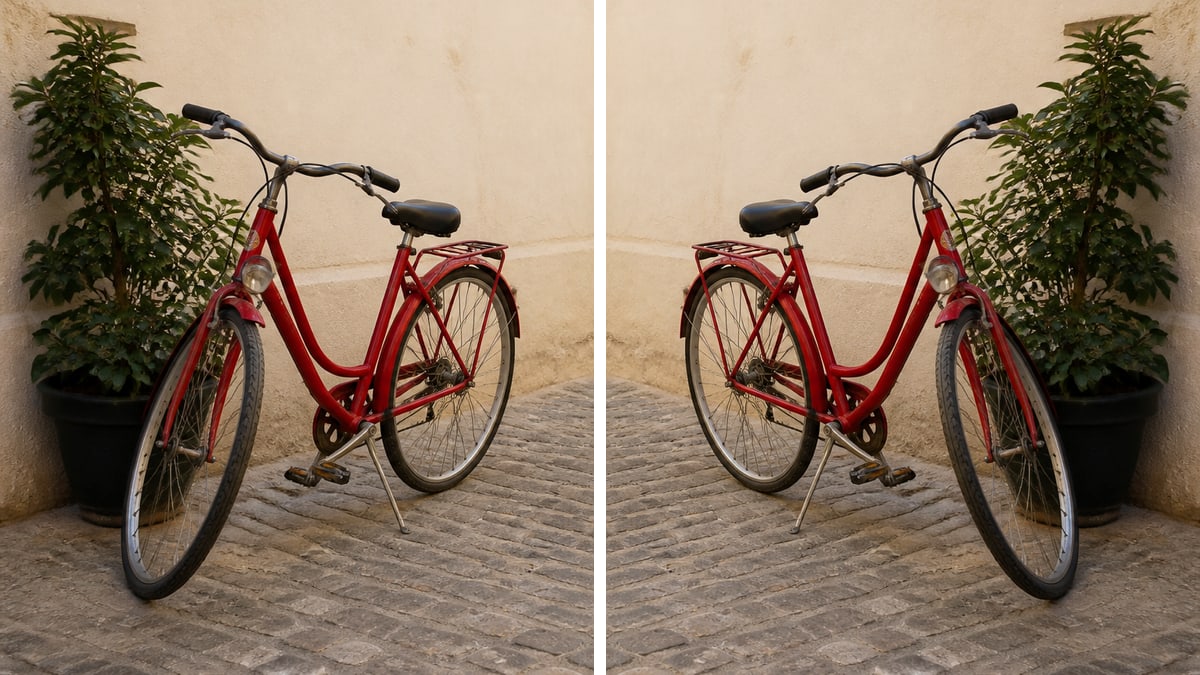
What you can do here
One photo is enough for a flip image job. A small batch uses the same flip on every file.
Horizontal flip
Mirrors the photo left to right. Text and faces swap sides. Click Horizontal in Settings. That is the usual “flip image horizontally” job.
Vertical flip
Mirrors the photo top to bottom. Use it for an upside-down scan or a reflection look. Click Vertical, or use 180° if you need upside down.
Live preview
The picture on the page is the file you download. Click a flip or rotate control in Settings and the preview updates. Reset brings the original back.
Stays on this device
JPG, PNG, WebP, GIF, BMP, or AVIF. Each file under 40 MB, up to 30 photos. HEIC, TIFF, and PDF are declined.
How to flip an image in 3 steps
Works on a phone or a computer. No account.
Add a photo
Drop a JPG, PNG, or WebP on the dashed box, or pick a file. One photo is enough. You can add more if you want the same flip on a batch.
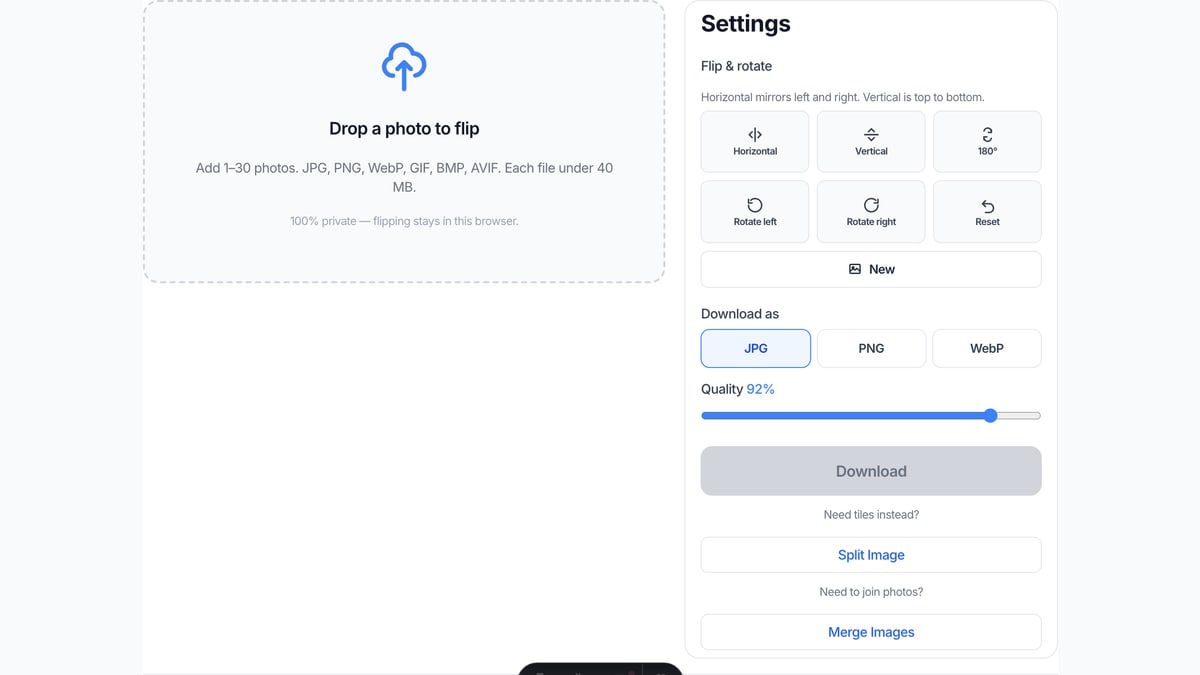
Pick horizontal or vertical
In Settings, click Horizontal to mirror left and right, or Vertical for top-to-bottom. Rotate left, right, or 180 if the photo is sideways. The preview is already the result.
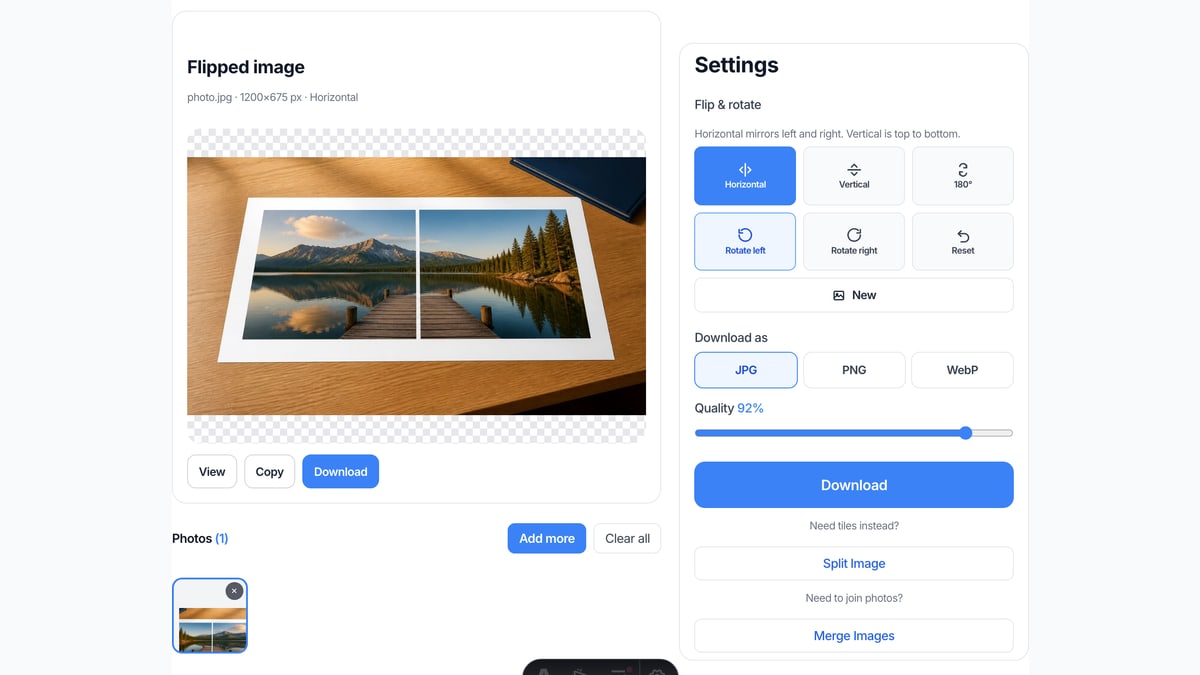
Download the flipped file
View it here, copy it, or download JPG, PNG, or WebP. Two or more photos download as a ZIP with the same flip on each file.
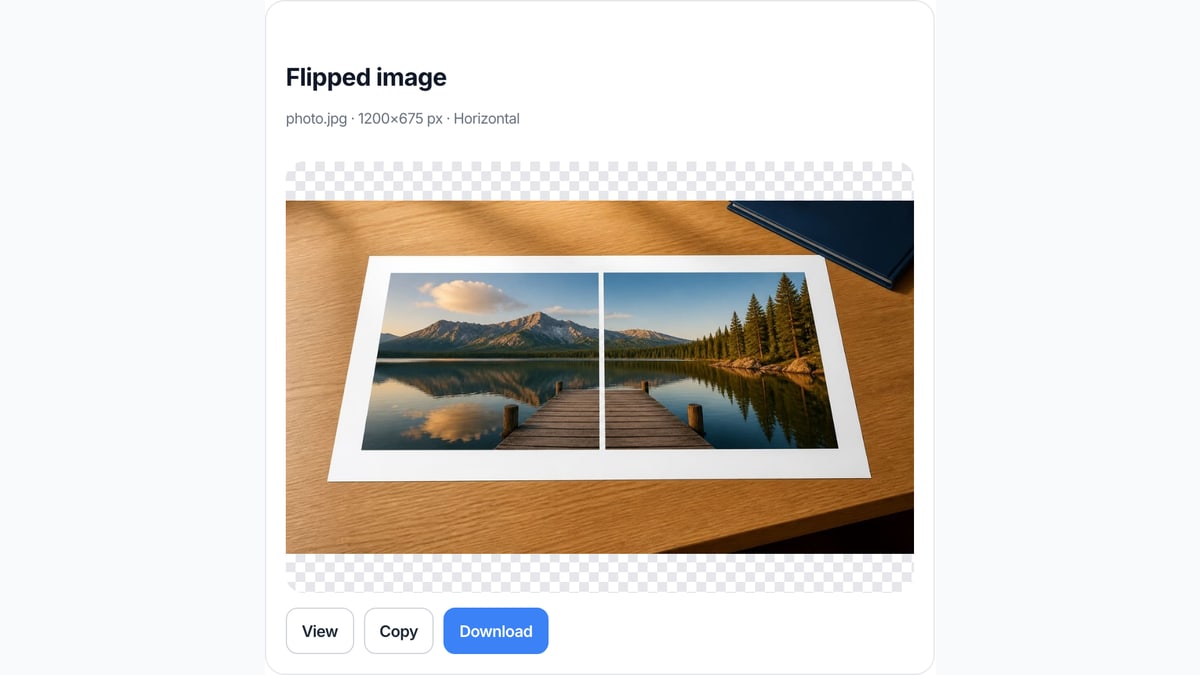
Why flip here
This page only mirrors pixels. That is the job in the search box.
No upload
The file never goes to our server. Closing the tab clears it from this page.
The preview is the download
You do not press Flip, then wait, then guess which file came back. What you see is what you save.
Honest about other apps
We do not walk you through Canva, Photoshop, Google Docs, or CSS. If you need those menus, use those apps. If you need a flipped JPG now, use this box.
Rotate if the photo is sideways
A sideways scan needs a 90° turn, not a mirror. Rotate left, rotate right, and 180 sit next to the flip controls. Reset returns the original pixels.
Limits and tips
- Horizontal flip mirrors left and right. Use Rotate left or Rotate right for a 90° turn.
- Vertical flip plus horizontal flip, or the 180° button, turns the photo upside down.
- Each file must stay under 40 MB. A side longer than 8000 px is scaled down before the flip.
- HEIC from iPhone, TIFF, and PDF are rejected. Save a JPG or PNG first.
- Need tiles for Instagram? Use Split Image on the homepage. Need two photos in one frame? Use Merge Images.
Jobs that finish on this page
These are flip jobs. Software-menu searches stay off this list on purpose.
Mirror a selfie so text reads correctly
Front camera shots often look reversed. A horizontal flip puts writing the right way around.
Input: One selfie JPG
Setting: Horizontal on
Output: One mirrored JPG
Caveat: This does not retouch skin or change the camera used.
Flip a scan that is upside down
A page photographed the wrong way around. Vertical, or both axes, puts the header back on top.
Input: One scan PNG
Setting: Vertical, or both
Output: One right-way PNG
Caveat: A sideways page needs Rotate left or Rotate right, not a vertical flip.
Same flip on a small batch
A folder of product shots that all need the same mirror. Add up to 30, keep the same setting, download the ZIP.
Input: Several JPG files
Setting: Same horizontal or vertical on all
Output: A ZIP of flipped files
Caveat: This is not a print shop or a design suite.
Flip here, or use a neighbor tool?
Use this page
Flip or rotate one photo
Use this URL when you need a left-right mirror, a top-bottom flip, or a 90° / 180° turn, then a downloadable JPG, PNG, or WebP. The preview is the file.
Use a related tool
Tiles, a join, or a smaller file
Need Instagram tiles? Use Split Image . Need two photos in one frame? Use Merge Images . Need a smaller file? Use Image Compressor . None of those pages invert colors or open Canva.
Flip image FAQ
What does flip image do on this page? +
It mirrors a photo in your browser. Horizontal swaps left and right. Vertical swaps top and bottom. Rotate left, rotate right, and 180 turn a sideways photo. You download the JPG, PNG, or WebP. Nothing is uploaded, and this page does not invert colors.
Is this an image flipper I can use online for free? +
Yes. This page is a free online image flipper. You do not create an account. The same page also answers flip image online and image flipper online. There is no paid unlock for the flip itself.
How do I flip an image horizontally? +
Add the photo. Click Horizontal in Settings. The preview shows the left-right mirror. Download that file. You do not need Photoshop, Canva, or a CSS class for this.
How do I flip an image vertically or upside down? +
Add the photo and click Vertical. That mirrors top and bottom. Click Horizontal as well, or use 180°, if you want the photo upside down. A sideways page needs Rotate left or Rotate right.
Can I flip more than one image at once? +
Yes. Add up to 30 photos. The same flip and rotate clicks apply to each file. Download one, or download all as a ZIP. That covers a small batch image flipper job. It is not a desktop folder watcher.
Does this replace how to flip an image in Canva or Photoshop? +
No. Those searches want the Flip or Transform menu inside Canva, Photoshop, Word, Google Docs, PowerPoint, Paint, CapCut, or Figma. This page does not open those apps. It flips a file you already have and gives you a new image back.
Can I flip an image with CSS or HTML? +
Not here. CSS scaleX(-1) is a front-end trick for a webpage. This tool writes new pixels into a downloadable file. If you need a CSS snippet, that is a different page and a different job.
Is imageflipper.com or ImageFlip the same thing? +
No. Those names are other sites. One is a brand domain. ImageFlip is usually the meme caption site. This URL is splitimage.im/flip-image/. We do not host their memes or their accounts.
Does this flip colors, like an image inverter? +
No. Flip here means a mirror. Invert or “flip colors” makes a negative. That is a different tool. We will not turn your photo into a color negative on this page.
What formats can I flip? +
JPG, PNG, WebP, GIF, BMP, and AVIF. Each file must stay under 40 MB. HEIC, TIFF, and PDF are rejected. Convert those to JPG or PNG first, then add the converted file.
Do I need to log in? +
No. Add a photo, flip it, download it. There is no account wall and no watermark on the flipped file.
Is this private? +
The flip runs in this browser tab. We do not upload the photo to finish the job. Close the tab and the files on this page are gone. That is the same privacy story as the rest of this site.
How do I flip an image on a computer or Mac? +
Open this page in Chrome, Safari, Edge, or Firefox. Drop a JPG or PNG. Click Horizontal in Settings. Download the mirrored file. You do not need Preview, Photos, or a desktop installer for a simple mirror.
Does this rotate the image 90 degrees? +
Yes. Rotate left and Rotate right turn the photo 90°. The 180° button turns it upside down. Flip still only mirrors left-right or top-bottom. Any-angle rotate, including 45°, lives on Rotate Image.
Will the image quality be affected? +
A flip does not resample for the mirror itself. If you searched flip image without losing quality, pick PNG. JPG or WebP re-encode uses the quality slider. A side longer than 8000 px is scaled down before the flip.
How do I flip an image? +
Add a photo to the box on this page. Click Horizontal in Settings for a left-right mirror, or Vertical for top to bottom. The preview is already the file. Download JPG, PNG, or WebP. That is how you flip an image here without opening another app.
Does this work on a phone or iPhone? +
Yes. Open this URL in Safari or Chrome on the phone. Add a JPG or PNG, tap Horizontal or Vertical in Settings, then download. You do not need the Photos app or an iPhone shortcut for a simple flip image job.
Do I need an app or a browser extension? +
No. This image flipper runs in the tab. There is no Chrome extension to install and no desktop app. If you searched reverse image without app, this page still only mirrors a file you already have. It is not reverse-image search.
Can I flip an image in Preview on a Mac? +
You can in Preview’s Tools menu, but that is a different app. This page flips the file in the browser. Drop the photo here, click Horizontal in Settings, and download. You do not need Preview, Photos, or a Mac shortcut.
Can I flip an image without flipping the text? +
Not as a separate control. A horizontal flip mirrors every pixel, including letters, so text reads backwards. If you need the scene flipped and the words still readable, that is a design edit, not this image flipper.
How do I flip an image sideways? +
A sideways photo needs a 90° turn. Use Rotate left or Rotate right in Settings. Horizontal and Vertical only mirror left-right or top-bottom. Custom angles stay off this URL.
Can I flip a PNG online and keep it a PNG? +
Yes. Add the PNG, flip it, and pick PNG under Download as. The preview is already the mirrored file. JPG and WebP are here too. HEIC is declined, so convert that to PNG first.
Ready to flip an image
Add a photo above. Click Horizontal in Settings. Download when it looks right.
Flip an image