Brighten Image Online — Contrast & Saturation
Brighten image, darken image, or lift contrast and saturation in the tab. Three sliders. The preview is the file you download. Nothing is uploaded.
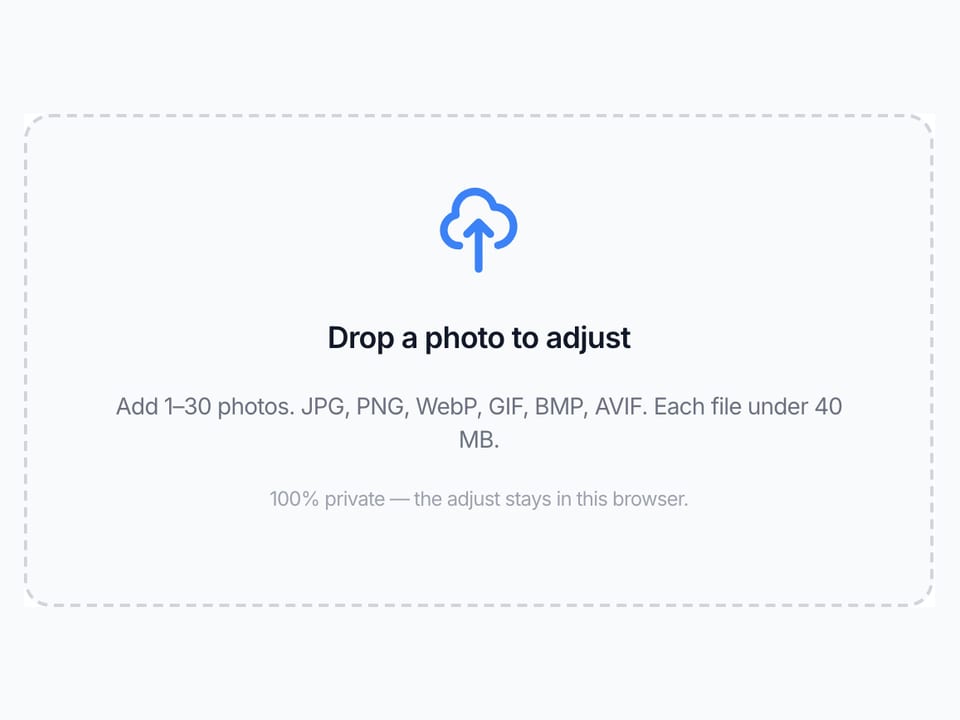
Drop a photo to adjust
Add 1–30 photos. JPG, PNG, WebP, GIF, BMP, AVIF.
100% private — the adjust stays in this browser.
Settings
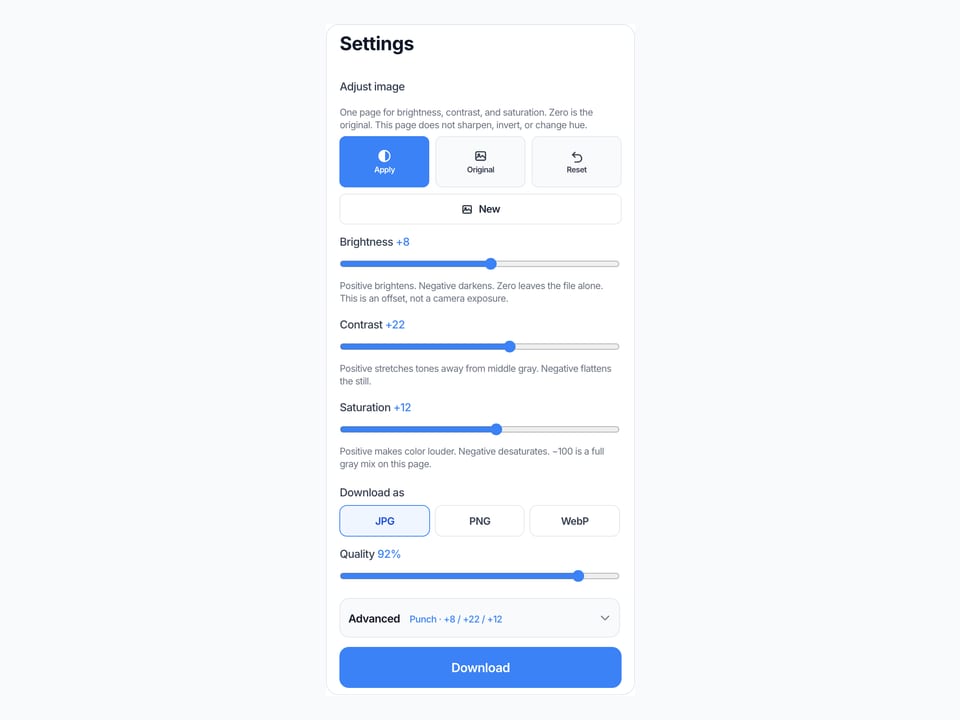
Adjust image
One page for brightness, contrast, and saturation. Zero is the original. This page does not sharpen, invert, or change hue.
Positive brightens. Negative darkens. Zero leaves the file alone. This is an offset, not a camera exposure.
Positive stretches tones away from middle gray. Negative flattens the still.
Positive makes color louder. Negative desaturates. −100 is a full gray mix on this page.
Download as
Advanced
Leave this closed and drag the three sliders. Open it to jump to Lift, Punch, or Fade. Reset still returns every slider to zero.
Tone preset
100% local
The adjust runs in this browser. The photo never leaves the tab.
One page, three sliders
Brighten, darken, contrast, and saturate share this URL. We did not split them.
Free, no account
No signup, no watermark. Download JPG, PNG, or WebP.
Also on this site: Split Image · Flip Image · Rotate Image · Invert Image Colors · Blur Image · Pixelate Image · Merge Images · Image Compressor · AI Image Upscaler
What is an image brightener on this page?
This page is one browser tool for tone — a place to brighten image, darken image, lighten image, raise contrast, saturate image, or desaturate image. People also type image brightener, image darkener, image contrast editor, and adjust image brightness. The job is the same still: a file you can download as JPG, PNG, or WebP.
Brightness is an offset on red, green, and blue. Contrast stretches or squeezes values around middle gray. Saturation blends each pixel toward its Rec. 709 luminance. The order is brightness, then contrast, then saturation. Zero on every slider is the original. We did not open four thin URLs for the same three knobs.
This is not hue, temperature, gamma, or sharpen. Hue and recolor are a different cluster. Sharpen Image raises edge contrast. Grayscale Image is a dedicated gray convert if you want that job named on the page. Photoshop, Lightroom, Canva, GIMP, and Affinity searches want a menu in another app. The file never goes to our server.
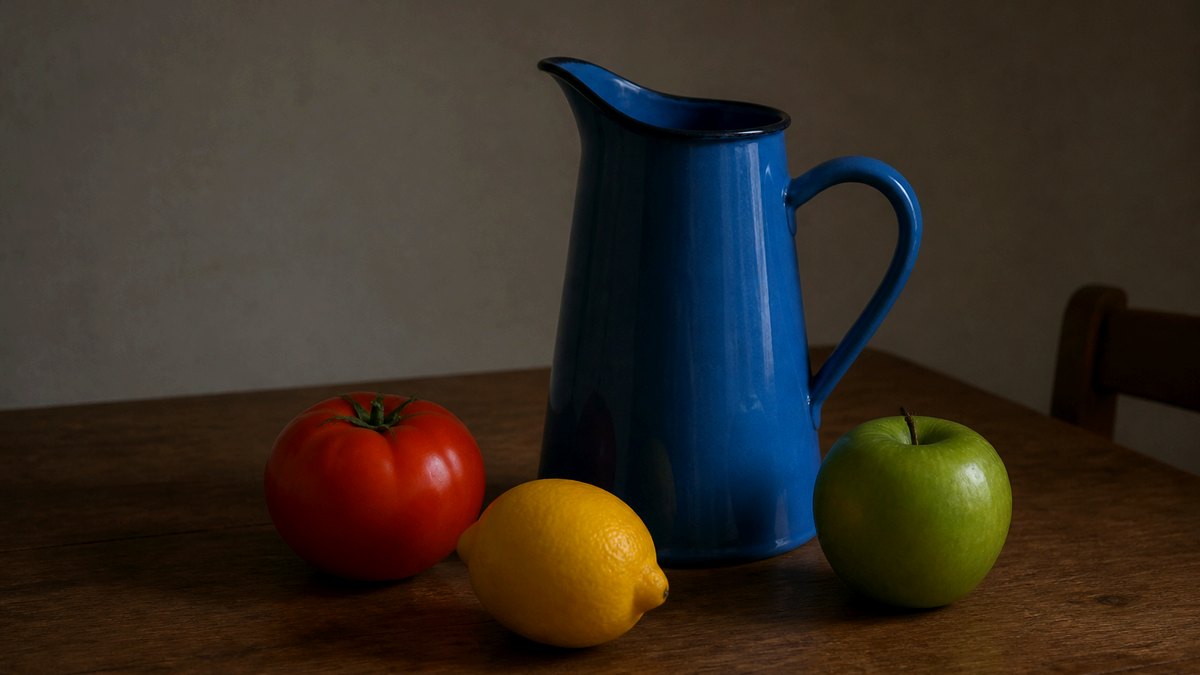
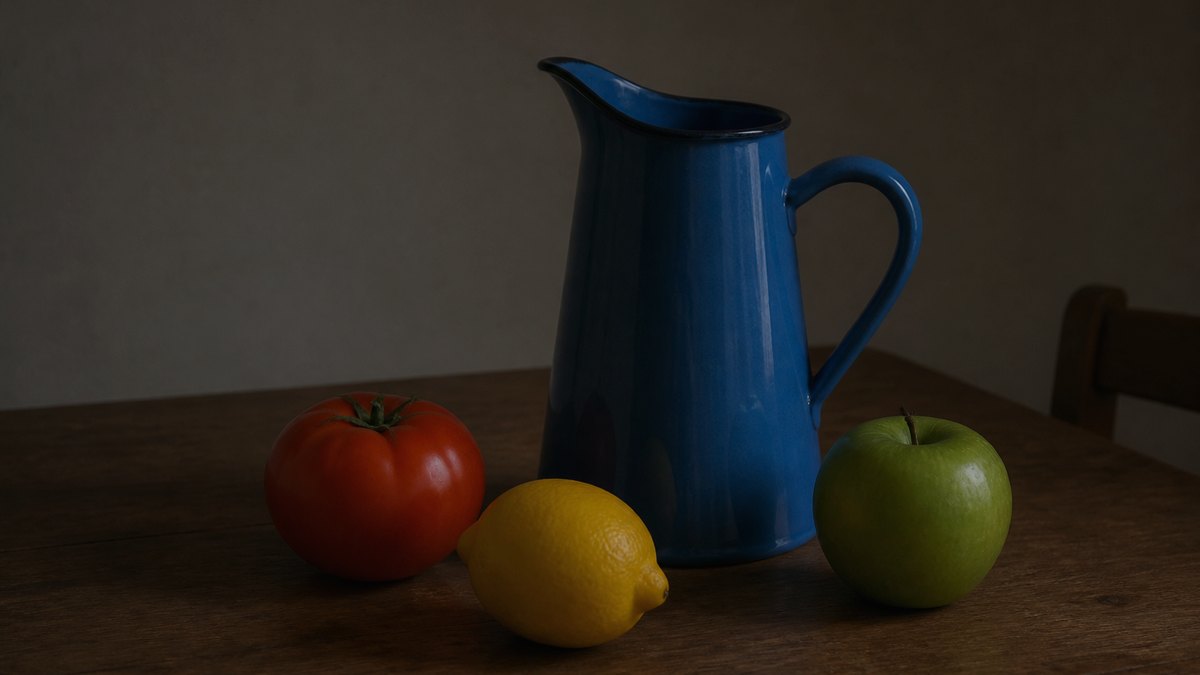
What you can do here
One photo is enough for a brighten image job, a darken image pass, or an image contrast editor download. Lift, Punch, and Fade are three different triples — not the same slider with new names.
Three sliders, one URL
Brightness, Contrast, and Saturation sit on the main card, each from −100 to 100. You do not hop between a lighten page, a darken page, and a saturate page. Apply is already on. Zero means unchanged.
Lift, Punch, Fade
Lift brightens a dark still. Punch adds a little contrast and color. Fade darkens and desaturates toward a matte look. You can still drag after a preset. Reset puts every slider back at zero.
Live preview
What you see in the box is what you save as JPG, PNG, or WebP. Identity under the preview shows the filename, pixel size, and the three signed values.
Stays on this device
JPG, PNG, WebP, GIF, BMP, or AVIF. Each file under 40 MB, up to 30 photos. HEIC, TIFF, and PDF are declined. A side longer than 8000 px is scaled down before the pass so the tab stays usable.
How to adjust an image in 3 steps
Works on a phone or a computer. No account. Same path for brighten image online, darken image, and image contrast editor.
Add a photo
Drop a JPG, PNG, or WebP on the dashed box, or pick a file. One photo is enough. You can add more if you want the same three values on a batch.
Check Punch, then drag if you need to
Punch is already on: a small brightness, contrast, and saturation lift. Drag the three sliders if the still is still dim or already too loud. Original shows the file without changing the download until you Apply again.
Download the adjusted file
View it here, copy it, or download JPG, PNG, or WebP. Two or more photos download as a ZIP with the same three sliders on each file.

Why adjust here
This page only shifts tone on a still. Brighten image, image brightener, darken image, and image contrast editor are the same three knobs in the search box.
No upload
The file never goes to our server to finish the brighten image job. Closing the tab clears it from this page. That is the same privacy rule as Sharpen Image and the rest of this site.
The preview is the download
You do not press Convert, then wait, then guess which file came back. What you see in the preview is what you save. Identity shows the filename, pixels, and the three values.
Honest about other apps
We do not walk you through Photoshop, Lightroom, Canva, GIMP, or Affinity. If you need curves, masks, or a camera profile, use those apps. If you need a brighter JPG now, use this box.
Not hue and not sharpen
A hue wheel or a recolor is a different cluster. A soft-focus rescue is Sharpen Image, and only if an edge is still there. A gray convert with a named page is Grayscale Image.
Limits and tips
- Do brightness first, contrast second, saturation last. Cranking saturation on a dark still usually looks worse.
- Brightness is an offset. Values driven to 255 stay white. This is not a RAW exposure recovery.
- A small contrast lift, around +10 to +20, is enough for most phone photos. Past +40 the still looks processed.
- Saturation at −100 is a gray mix on this page. If that is the whole job, Grayscale Image is the dedicated URL.
- Hue, warmth, gamma, and sharpen are not on these sliders. Sharpen Image is the edge tool.
- Each file must stay under 40 MB. A side longer than 8000 px is scaled down before the pass.
- HEIC from iPhone, TIFF, and PDF are rejected. Save a JPG or PNG first.
- You own the photo you add. This page is not legal advice and does not grant a copyright license.
Jobs that finish on this page
These are brighten / darken / contrast / saturate jobs. Software-menu and AI-enhance searches stay off this list.
Brighten a dark indoor still
A kitchen or product shot that came out muddy. Drag Brightness up, add a little Contrast, leave Saturation near zero, then View.
Input: One JPG photo
Setting: Lift, or Brightness around +20
Output: One brighter JPG or PNG
Caveat: Clipped blacks will not grow new shadow detail. This is not a RAW file.
Darken an over-bright window shot
A still that blew the room. Drag Brightness down and ease Contrast if the midtones look chalky.
Input: One PNG photo
Setting: Brightness around −15 to −25
Output: One darker JPG or PNG
Caveat: Highlights already at 255 stay white. We cannot pull a blown window back.
Same tone on a small batch
A folder of listings that should share one look. Add up to 30, keep the three sliders, download the ZIP.
Input: Several JPG files
Setting: Same brightness, contrast, and saturation on all
Output: A ZIP of adjusted files
Caveat: It is not a desktop folder watcher or a 100-file factory.
Adjust here, or use a neighbor tool?
Use this page
Brighten, darken, contrast, saturate
Use this URL when you need an image brightener, a darken image pass, an image contrast editor, or a saturate / desaturate mix. The preview is the file. Hue, sharpen, and grayscale live on other URLs or are not this product.
Use a related tool
Sharpen, invert, mosaic, or cut tiles
Need a crisper edge instead of a tone shift? Use Sharpen Image . Need a color negative? Use Invert Image Colors . Need mosaic blocks? Use Pixelate Image . Need a left-right mirror? Use Flip Image . Need Instagram tiles? Use Split Image . None of those pages brighten image.
Brighten image FAQ
How do I brighten an image online? +
Add a JPG, PNG, or WebP. Drag Brightness to the right. The preview is the brighter file. Download JPG, PNG, or WebP. You do not need an image brightener app or an account. This is a free brighten image online tool in the tab.
Is this an image brightener and a darken image tool? +
Yes, on one URL. Positive brightness lightens. Negative brightness darkens. Image brightener, image darkener, lighten image, and darken image online are the same slider. We did not split them into four thin pages.
How do I adjust image brightness, contrast, and saturation together? +
Use the three sliders on this page. Do brightness first, contrast second, saturation last. Apply is already on. Reset returns every slider to zero. That is the whole image contrast editor and saturator on this URL.
Can I saturate or desaturate an image here? +
Yes. Drag Saturation up to saturate image. Drag it down to desaturate image. At −100 the still is a Rec. 709 gray mix. If you only want a named grayscale convert, use Grayscale Image instead.
Is this brighten image online free, with no login? +
Yes. There is no account wall and no watermark. Add a photo, drag the sliders, download the file. We do not upload the photo to finish the brighten image or darken image job.
Can I brighten a dark photo on iPhone or Android? +
Yes. Use Safari or Chrome. Add a JPG or PNG, drag Brightness, then download. You do not install a brighten dark photo app. iPhone Photos does not write this file for you.
How do I brighten an image in Photoshop, Lightroom, Canva, GIMP, or Affinity? +
This page does not open those apps. Those searches want a menu in that software. If you already have a JPG or PNG export, drop that file here to brighten image online and download a new still. We will not pretend this URL is their tutorial.
Is this an AI brighten image or auto enhance? +
No. Searches like AI brighten image, auto brighten image online, or AI image brightener and enhancer want a model that guesses new tones. This page only runs local pixel math. We will not slap “AI” on three sliders.
Will this recover a clipped white or a black crush? +
No. An offset cannot grow detail that is already 0 or 255. A RAW exposure slider in a camera app is a different product. If the window is already white, it stays white.
Does this change hue or sharpen the photo? +
No. Hue, warmth, and recolor are not on this page. Sharpen Image is the edge tool. Invert Image Colors is the negative. We kept those jobs on their own URLs so this one stays a tone page.
What formats can I adjust? +
JPG, PNG, WebP, GIF, BMP, and AVIF. Each file must stay under 40 MB. HEIC, TIFF, PDF, and SVG are rejected. Convert those to JPG or PNG first, then add the converted file to this image brightener.
Can I download a PNG or keep transparency? +
Yes. Add the PNG, leave Apply on, and pick PNG under Download as. Transparent pixels stay transparent. JPG fills those pixels with white because JPEG has no alpha channel. There is no PSD export.
Can I adjust more than one image at once? +
Yes. Add up to 30 photos. The same three sliders apply to each file. Download one, or download all as a ZIP. It is not a desktop folder watcher or a 100-file factory.
What do Lift, Punch, and Fade do? +
Lift is a modest brighten. Punch is a small contrast and saturation lift. Fade darkens and desaturates. They are starting triples, not locked looks. You can still drag after you tap one. Reset clears them.
Is grayscale the same as desaturate here? +
Saturation at −100 is a gray mix, yes. Grayscale Image is still the page to use when the search is grayscale / greyscale / black and white. This URL is for people who also need brightness and contrast on the same still.
Can I adjust a video or use a text prompt? +
No. Video and prompt searches are a different job. This adjuster only accepts stills. There is no text prompt and no timeline.
Is this legal, and who owns the photo? +
You keep the rights to the file you add. We do not store it and we do not give you a copyright license for someone else’s picture. This is not legal advice. If the photo is not yours to edit, do not use this adjuster on it.
Ready to brighten image online
Add a photo above. Drag brightness, contrast, or saturation. Download when the tone looks right.
Adjust image