Aspect Ratio Changer Online Free
Change image aspect ratio in the tab. Pick 16:9, 1:1, or 9:16. Crop, pad, or stretch. Download the still. Nothing is uploaded.
Drop a photo to change the ratio
Add 1–30 photos. JPG, PNG, WebP, GIF, BMP, AVIF.
100% private — the aspect ratio changer stays in this browser.
After you add a photo, pick 16:9, 1:1, or 9:16. Crop fills the frame. Pad keeps the whole still. Stretch distorts on purpose.
Settings
Aspect ratio changer
This aspect ratio changer rewrites the shape of the still. Crop trims. Pad adds bars. Stretch warps. It does not freeform-crop, and it does not invent pixels with AI.
Target ratio
16:9 is widescreen. 1:1 is square. 9:16 is a story. Custom is any width:height pair.
How to fit
Crop fills the ratio by trimming. Pad keeps every pixel and adds bars. Stretch fills by distorting.
Bar color
Used only in Pad. Transparent bars need PNG. JPG has no alpha, so it falls back to a solid fill.
Download as
100% local
The aspect ratio changer runs in this browser. The photo never leaves the tab.
No upload
Nothing is sent to a server to finish the change image aspect ratio job.
Free, no account
No signup, no watermark. Download JPG, PNG, or WebP.
Also on this site: Split Image · Flip Image · Rotate Image · Invert Image Colors · Blur Image · Pixelate Image · Merge Images · Image Compressor · Crop Image · AI Image Upscaler
What does an aspect ratio changer do here?
This page is a browser aspect ratio changer for a file you already have. Aspect ratio is width compared with height — 16:9 is a wide still, 1:1 is a square, 9:16 is a tall story. You add a photo, pick the target, and download a new JPG, PNG, or WebP. People type aspect ratio changer, image ratio changer, image ratio converter, change image aspect ratio, or image aspect ratio changer. The job is the same: a still that already matches the shape a platform expects.
A change image aspect ratio job is not a freeform crop. Crop Image lets you draw any rectangle. This aspect ratio changer always aims at a named pair. It is not a pixel resizer that only shrinks 4000×3000 to 1280×720 while keeping the old shape. It is not an AI extender that paints fake sky into the bars. It is not CapCut, Clipchamp, Canva, Photoshop, or a video lesson. Those searches want another product.
The file never goes to our server. JPG, PNG, WebP, GIF, BMP, and AVIF are welcome. HEIC, TIFF, and PDF are declined on purpose. One photo is enough for this aspect ratio changer. After the ratio is right, Split Image can cut that still into a grid or a print poster.
What you can do here
One photo is enough for an aspect ratio changer job, a change image aspect ratio download, or a 16:9 still. A small batch keeps the same target on every file.
Named ratios, including custom
Lock 1:1, 4:5, 4:3, 3:2, 16:9, 9:16, or 21:9. Custom takes two numbers, such as 5:4. The aspect ratio changer does not guess a platform for you.
Crop, pad, or stretch
Crop fills the frame by trimming. Pad keeps every pixel and adds bars — that is how you change image aspect ratio without cropping. Stretch fills by distorting. The label on the preview tells you which one ran.
The download is the new shape
View, copy, or download JPG, PNG, or WebP. Identity under the preview shows the filename, the original pixels, the target pair, and the output size.
Then split it
This URL lives on Split Image so you can run the aspect ratio changer first, then cut the still into tiles. Freeform crop stays on Crop Image if you only need a tighter rectangle.
How to change image aspect ratio in 3 steps
Works on a phone or a computer. No account. Same path for an image ratio changer or image aspect ratio changer online job.
See the new frame
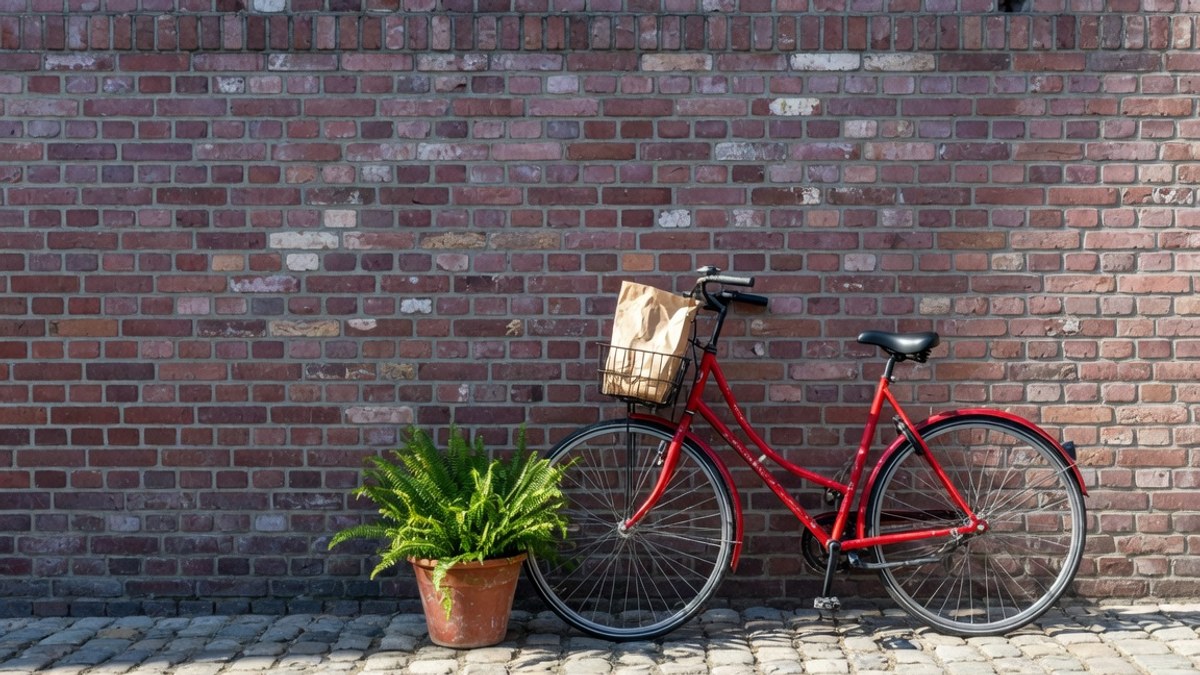
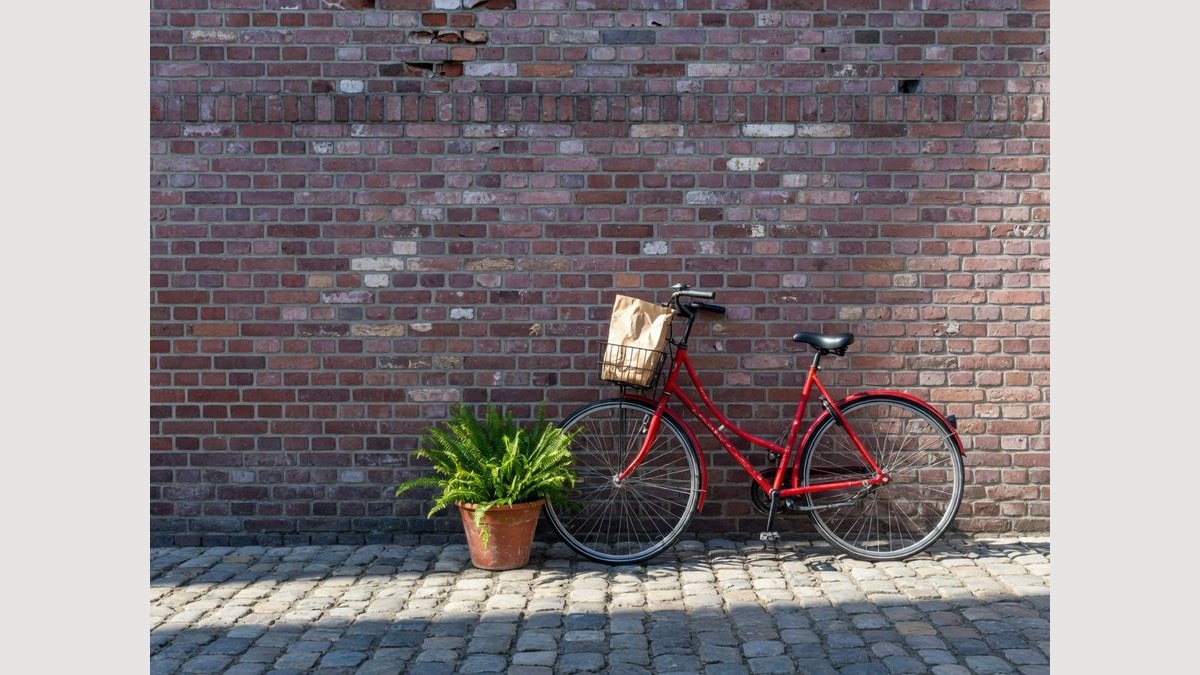
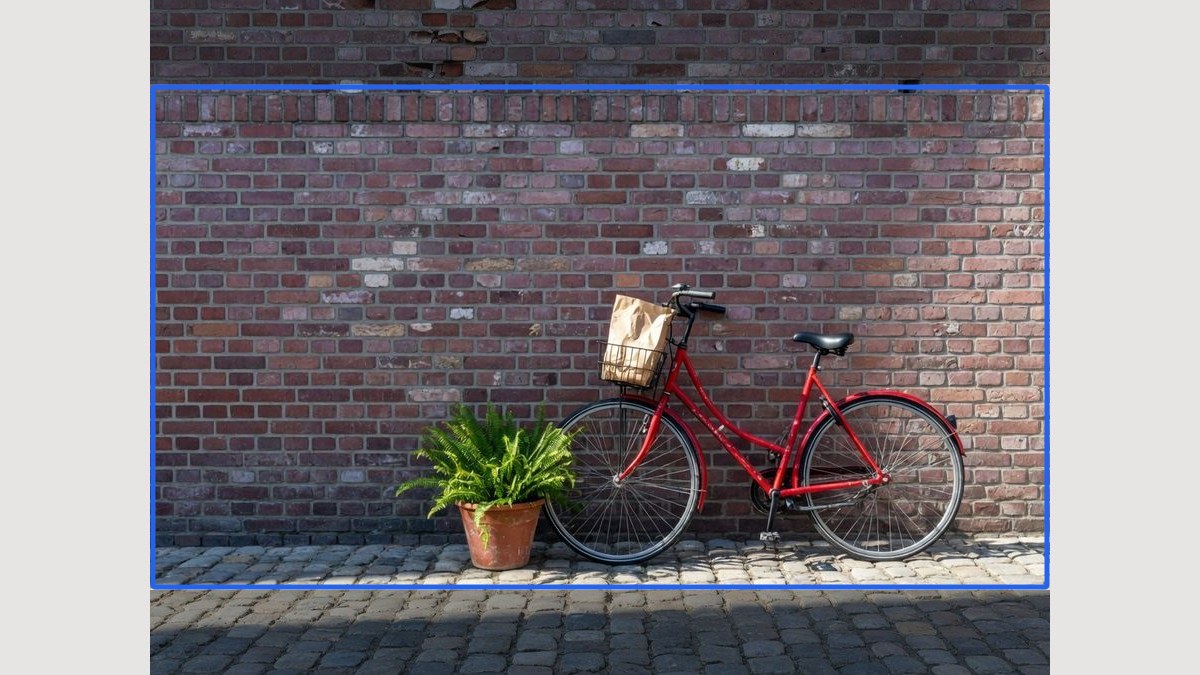
The still below is the same 4:3 photo with a 16:9 box on it. The dim band is what Crop throws away. Drop your own photo in the dashed box above to change the ratio the same way.
Pick a ratio and a fit
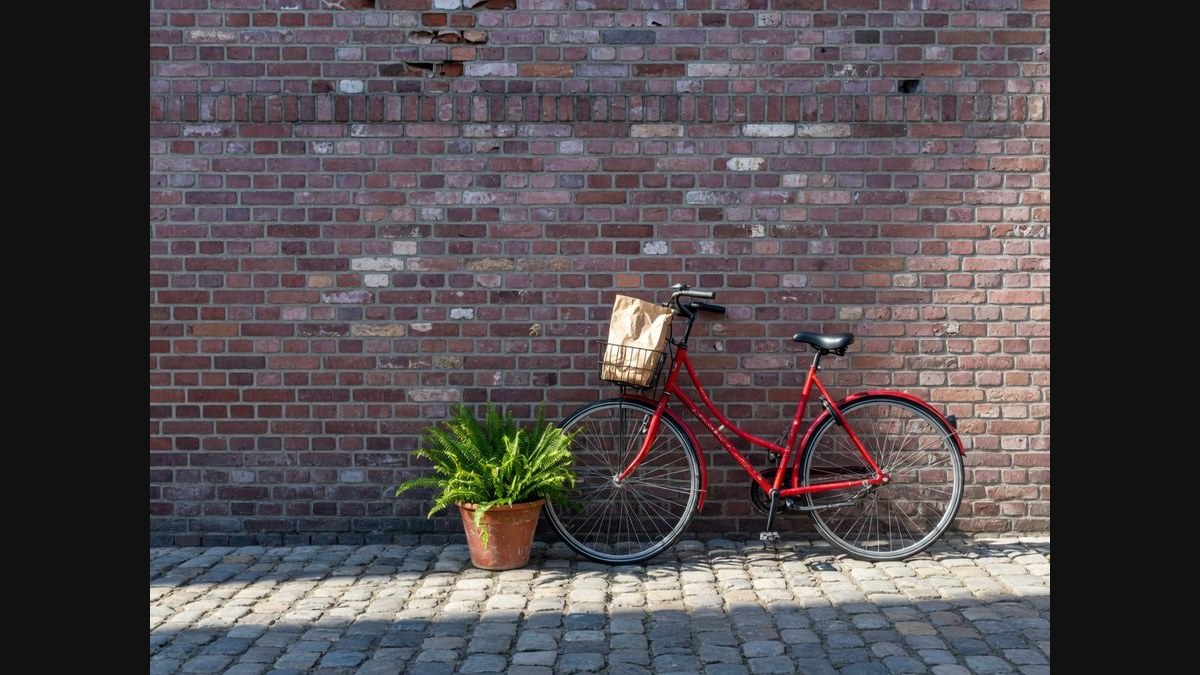
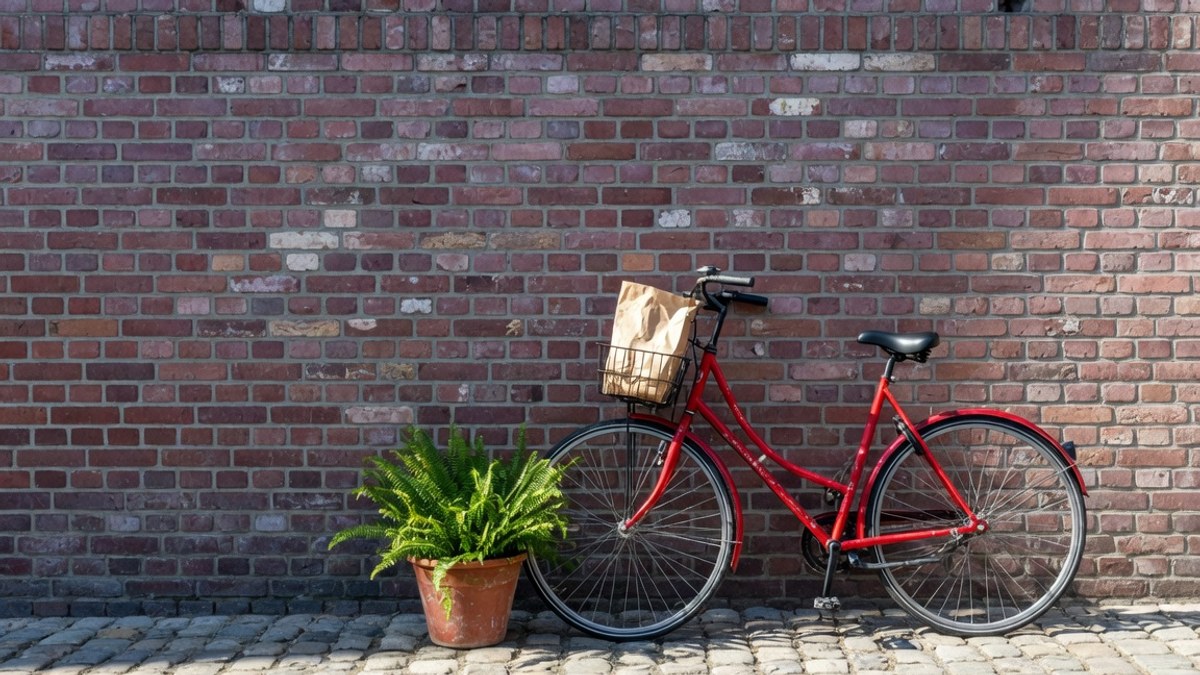
The still below is Pad: the whole bicycle stays, black bars fill 16:9. Crop would trim the wall instead. Stretch is the third button and distorts on purpose.
Download the file
View it here, copy it, or download JPG, PNG, or WebP. Two or more photos download as a ZIP. Then open Split Image if you want tiles from that still.
Why change image aspect ratio here
This page only rewrites the shape of a still. Aspect ratio changer, image ratio changer, and image ratio converter are the same download job. An aspect ratio finder that only reads 1920×1080 as 16:9 is a calculator, not this URL.
No upload
The aspect ratio changer never sends the photo to a server. That matches the privacy line several tool pages already promise, without an account wall.
Honest fit modes
Crop, pad, and stretch are three different geometries. The page names them. It will not hide distortion behind a “smart” label, and it will not pretend pad is AI fill.
A locked ratio, not a wandering box
Freeform crop lives next door. This aspect ratio changer is for people who already know the pair — 16:9 for a thumbnail, 1:1 for a square post, 9:16 for a story.
Then it belongs on Split Image
Once the shape is right, the same still can be cut into a grid, a print PDF, or a carousel. Neighbor tools stay one click away.
Tips before you download
- Faces, logos, and captions sit near the edge. In Crop, drag the box so those stay inside. Pad is safer when you cannot lose a millimetre.
- Transparent bars only exist in PNG. JPG has no alpha channel, so this aspect ratio changer fills those pixels with a solid color instead.
- Stretch is the only mode that warps circles into ovals. If you need to change image aspect ratio without distortion, use Crop or Pad.
- 16:9 suits a YouTube thumbnail. 1:1 and 4:5 suit a feed. 9:16 suits a story. This aspect ratio changer does not post the file for you.
- This is not CapCut, Canva, Photoshop, or an AI extender. Export a still from those apps if you need their editor, then drop that still here.
When this aspect ratio changer helps
Each card is a real job for this aspect ratio changer. The caveat is the honest limit.
YouTube thumbnail 16:9
A phone photo is 4:3. The thumbnail slot is 16:9. Crop fills the wide frame without letterboxing.
You add: A 4:3 JPG from a camera roll
You pick: 16:9 + Crop, subject in the box
You get: A 16:9 JPG ready for a thumbnail slot
Caveat: Top and bottom get trimmed. Pad if you cannot lose sky or floor.
Square post 1:1 without cropping
A landscape still has to sit in a square grid. Pad keeps the whole photo and adds bars.
You add: A 16:9 PNG with a product in the middle
You pick: 1:1 + Pad, white or black bars
You get: A square PNG that still shows the full product
Caveat: Bars are visible. Crop if you would rather lose the sides.
Story or reel 9:16
A horizontal still has to fill a tall phone. Crop a vertical slice, or pad and accept large bars.
You add: A 3:2 travel photo
You pick: 9:16 + Crop, person centered
You get: A tall JPG for a story frame
Caveat: Most of the sides disappear. This aspect ratio changer will not invent extra scenery.
This aspect ratio changer, or a neighbor tool?
Use this page
Change image aspect ratio, then split it
Use this URL when the job is an aspect ratio changer: 16:9, 1:1, 9:16, 4:5, or a custom pair. Crop fills. Pad keeps the whole still. Stretch distorts on purpose. Flip, rotate, and a free rectangle live on other URLs.
Use a related tool
Freeform crop, invert, or cut tiles
Need any rectangle, not a locked ratio? Use Crop Image . Need a color negative? Use Invert Image Colors . Need mosaic blocks? Use Pixelate Image . Need a left-right mirror? Use Flip Image . Need Instagram tiles? Use Split Image . None of those pages is this aspect ratio changer.
Aspect ratio changer FAQ
How do I change image aspect ratio in this tab? +
Add a JPG or PNG above. Pick 16:9, 1:1, 9:16, or a custom pair. Choose Crop, Pad, or Stretch. The preview is the file. Download JPG, PNG, or WebP. That is the whole aspect ratio changer path. No account.
How do I change image aspect ratio without cropping? +
Use Pad. The aspect ratio changer keeps every pixel and adds bars so the canvas matches the target pair. Pick black, white, a custom color, or transparent bars on PNG. Crop is the other button if you would rather trim.
How do I change image aspect ratio without distortion? +
Use Crop or Pad. Crop trims. Pad adds bars. Only Stretch warps the still to fill the frame. If a circle must stay a circle, do not pick Stretch on this aspect ratio changer.
Can I change a photo to 16:9, 1:1, or 9:16? +
Yes. Those three chips are on the settings card, plus 4:5, 4:3, 3:2, 21:9, and custom. The aspect ratio changer applies the pair you tap. It does not pick a social network for you.
Is this the same as Crop Image? +
No. Crop Image draws any rectangle, including Free. This aspect ratio changer always aims at a named ratio and can pad or stretch. If you only need a tighter box with no target pair, use Crop Image.
Is this an AI aspect ratio changer? +
No. This page does not generate sky, walls, or extra hands. Pad leaves empty bars. Crop throws pixels away. Stretch distorts. If you want generative fill, that is a different product, and we will not pretend this URL is that.
Can I use this online in a browser on a phone? +
Yes. Safari or Chrome can add a photo, tap 16:9, and download. The aspect ratio changer is the page itself. There is no iOS app, no Android APK, and no Chrome extension to install.
Is the aspect ratio changer free? Does it add a watermark? +
It is free. The download has no watermark and no account wall. You get the pixels after crop, pad, or stretch, encoded as JPG, PNG, or WebP. There is no PSD export.
What files can I add? Do I get JPG, PNG, or PSD? +
Add JPG, PNG, WebP, GIF, BMP, or AVIF under 40 MB. Download JPG, PNG, or WebP. HEIC, TIFF, PDF, and PSD are rejected on purpose. Convert those first, then drop the converted still on this aspect ratio changer.
Does changing aspect ratio reduce quality? +
Crop throws pixels away, so the file is smaller in one direction. Pad keeps the original pixels and adds bars. Stretch resamples the whole still, which can soften detail. This aspect ratio changer does not upsample with AI.
Can I change a video aspect ratio in CapCut, Clipchamp, or Canva? +
Not here. This aspect ratio changer is for still photos. Those searches want a timeline or a design editor. Export a frame if you need a still, then drop that frame on this page.
Do I need Photoshop, Preview, or Paint to change image aspect ratio? +
No. Open this page, add the file, pick the pair, download. Those apps have their own crop menus if you already work there. This URL will not pretend to be their tutorial.
Is an image ratio changer the same as an image ratio converter? +
Yes, when the still has to become 16:9, 1:1, or 9:16. Add the photo, pick the pair, then crop, pad, or stretch and download. That is not a JPG-to-PNG format converter, and it is not a pixel resizer that keeps the old shape.
Is this an aspect ratio finder? +
No. A finder only reports the current pair from width and height. This page changes the pair and gives you a new file. After you add a photo, the preview line still shows original pixels so you can see what you started from, but the download is the new shape.
Ready to change the aspect ratio
Add a photo above. Pick 16:9, 1:1, or 9:16. Crop, pad, or stretch. Download when the frame is right.
Change aspect ratio